Troubleshoot Zen
Learn how to diagnose and resolve common issues in Zen.
Firefox
MOZILLA_PKIX_ERROR_KEY_PINNING_FAILURE
If you’re using Firefox with a non-standard configuration, such as Arkenfox, you may encounter a “Secure Connection Failed” screen with the error code MOZILLA_PKIX_ERROR_KEY_PINNING_FAILURE.
To work around this, set security.cert_pinning.enforcement_level in about:config to 1:

If you’re using Arkenfox, you can add this preference to your user-overrides.js:
user_pref("security.cert_pinning.enforcement_level", 1);MOZILLA_PKIX_ERROR_MITM_DETECTED
Another error that you may encounter in Firefox, especially right after installing Zen, is MOZILLA_PKIX_ERROR_MITM_DETECTED.
In most cases, the error is fixed by a browser restart.
If that doesn’t resolve the issue, in Firefox, go to Settings > Privacy & Security, then scroll down to Certificates. Once there, tick the checkbox for “Allow Firefox to automatically trust third-party root certificates you install”.
Alternatively, set security.enterprise_roots.enabled to true in about:config and restart Firefox. This appears to have the same effect as the setting explained above, according to the Firefox docs. However, it’s good to check both just in case.
Docker
When Zen is enabled, Docker automatically picks up the system proxy settings and routes container HTTP/HTTPS traffic through Zen. However, this can cause certificate verification errors because containers do not trust Zen’s CA.
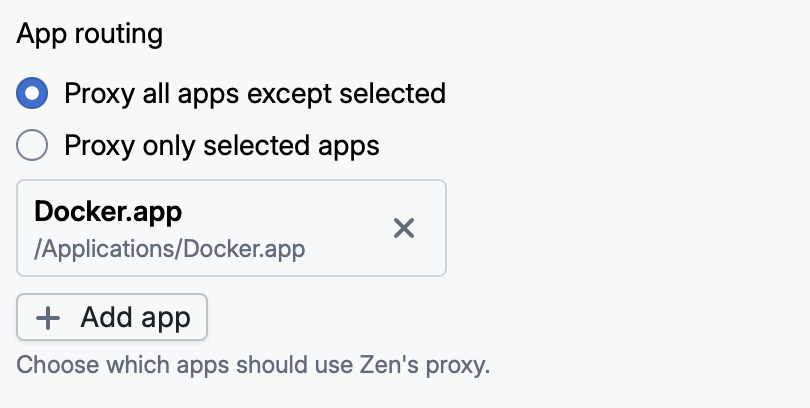
Fixing this issue comes down to excluding Docker from proxying.
macOS
In Zen, go to Settings and scroll down to App routing. Ensure that “Proxy all apps except selected” is selected, click “+ Add app”, and select /Applications/Docker.app. Here’s how the setting should look as a result:
Linux
Zen won’t start after updating to v0.23.0
The v0.23.0 update unintentionally made Zen’s tray-icon library (AppIndicator) required at startup, so Zen won’t launch on systems that don’t have it installed. You’ll see an error like this in the logs:
error while loading shared libraries: libayatana-appindicator3.so.1: cannot open shared object file: No such file or directoryTo get Zen running on your system again, please either update the binary manually to v0.24.0, or install libayatana-appindicator:
- Debian/Ubuntu:
sudo apt install libayatana-appindicator3-1 - Fedora:
sudo dnf install libayatana-appindicator-gtk3
See issue #735 for details.